Connect Verbleif to Booking Experts by installing the Verbleif app from the Booking Experts App Store. You start in Booking Experts, choose the correct administrations, and finish the connection in Verbleif with Start configuration. Reservations and properties then sync between both systems.
Booking Experts is the reservation system (PMS) for many parks. Through the integration, Verbleif imports up-to-date reservations and properties so tasks and reports on your park match what is in Booking Experts. When you complete tasks in Verbleif, status, timesheets, and used materials can sync back to Booking Experts. This keeps billing and planning in the PMS current without duplicate work.
Example: a cleaning task for a property on a changeover day arrives with the correct property from Booking Experts. After completion, Verbleif syncs status and any time and materials back.
You have a Booking Experts account with permission to install apps and connect Verbleif.
You know which Booking Experts administrations belong to which parks in Verbleif.
For the final step in Verbleif you need access to Integrations and Appstore. If you do not have that access, ask your administrator.
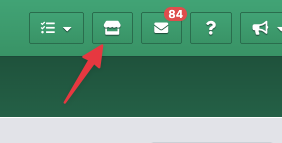
Sign in to Booking Experts and click the shop icon in the top-right corner.
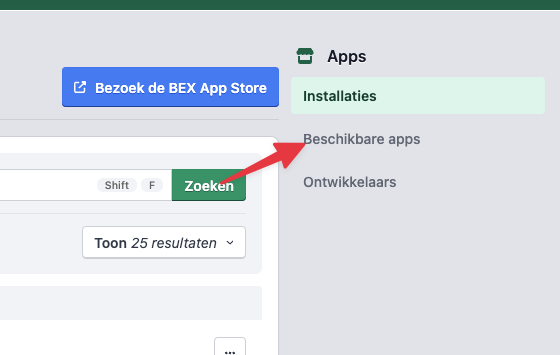
On the Booking Experts App Store page, click Available apps in the menu on the right.
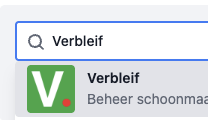
Search for Verbleif and click the app.
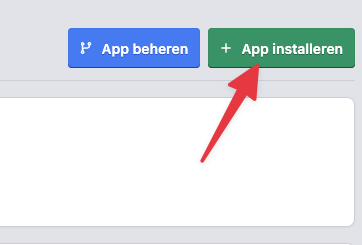
Click Install app.
Scroll all the way to the bottom and choose which administrations to connect. Select only administrations that belong to parks in Verbleif.
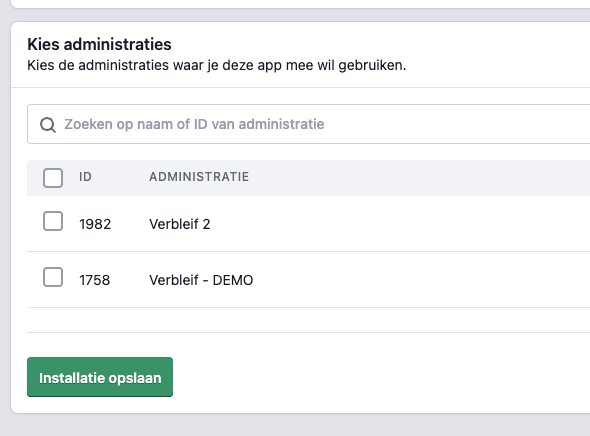
Click Save installation. You are redirected to Verbleif.
In Verbleif, finish the installation. What you see depends on your account:
One organisation and one location: you see the App installation screen with a message that you have returned from a third party. Click Install and continue.
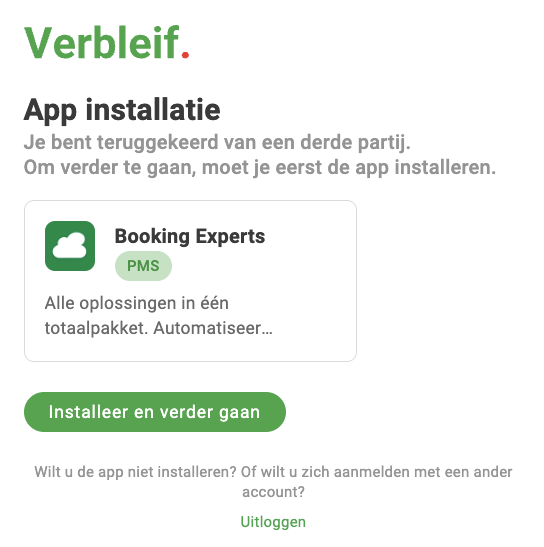
Multiple organisations: first choose which organisation to install the app for and click Continue. Then you see the same App installation screen and click Install and continue.
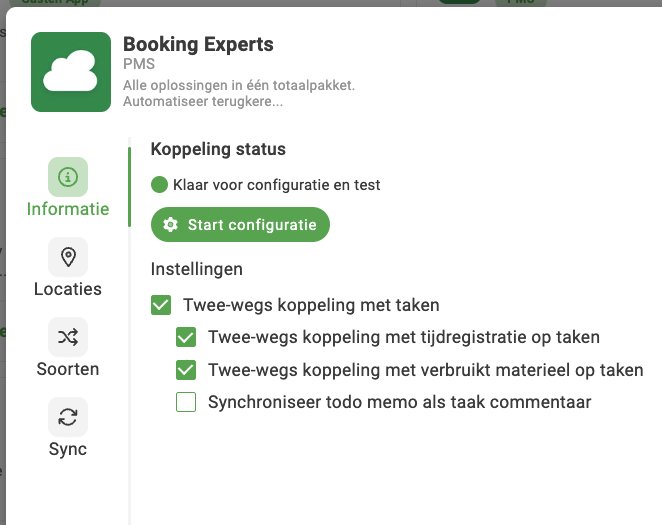
In Verbleif, go to Integrations → Appstore, open the Booking Experts app, and on the Information tab click Start configuration to test and finalize the connection.

Start in Booking Experts: the connection begins in the Booking Experts App Store. You install Verbleif there first, then finish in Verbleif.
Correct administrations: select only administrations that belong to parks in Verbleif. A wrong choice leads to empty or incorrect data.
Configure next in Verbleif: link parks on Locations, set up sort mapping on Sorts, and start a first sync on Sync to import reservations and properties.
Start configuration and status: after Start configuration, status should become Active. If the integration stays Inactive, check whether installation in Booking Experts is complete.
First sync: the first import may take a while with many reservations.
Check that you are signed in with an account allowed to install apps. Ask in Booking Experts for App Store permissions if you see the shop icon but Verbleif is not in the list.
Remove the Verbleif app in Booking Experts and install again. During installation, select only administrations that belong to your parks in Verbleif.
Check that installation in Booking Experts is complete and that you chose the correct administrations. Refresh the page in Verbleif, open Booking Experts again via Appstore, and click Start configuration once more.
You probably do not have access to Integrations. Ask your administrator for access to Integrations and Appstore.
Integrations overview
Which integrations Verbleif supports and what they sync.
Install an integration
The standard Appstore install path in Verbleif.
Sync & locked fields
Sync and field locking after installation.
Connect guest apps
Link Great Stay, WeMa Leisure, and Tenzer to Verbleif.