

To work with Verbleif you need an account and access to at least one park. Your administrator invites you; that is how you create your account and sign in to the web app or mobile app. This article explains how those first steps work.
What is this and why
Verbleif is not an open sign-up platform. Your park decides who gets access and which permissions you have. That prevents someone without permission from viewing tasks, reports or properties.
Before you start
You need an invitation from your administrator or park management, or your park already uses Verbleif and your administrator creates your account.
Keep the email address you were invited with at hand. That becomes your sign-in name.
Steps
Open the invitation you received by email and follow the steps to create your account and choose a password.
Go to the Verbleif web app or open the mobile app and click Sign in.
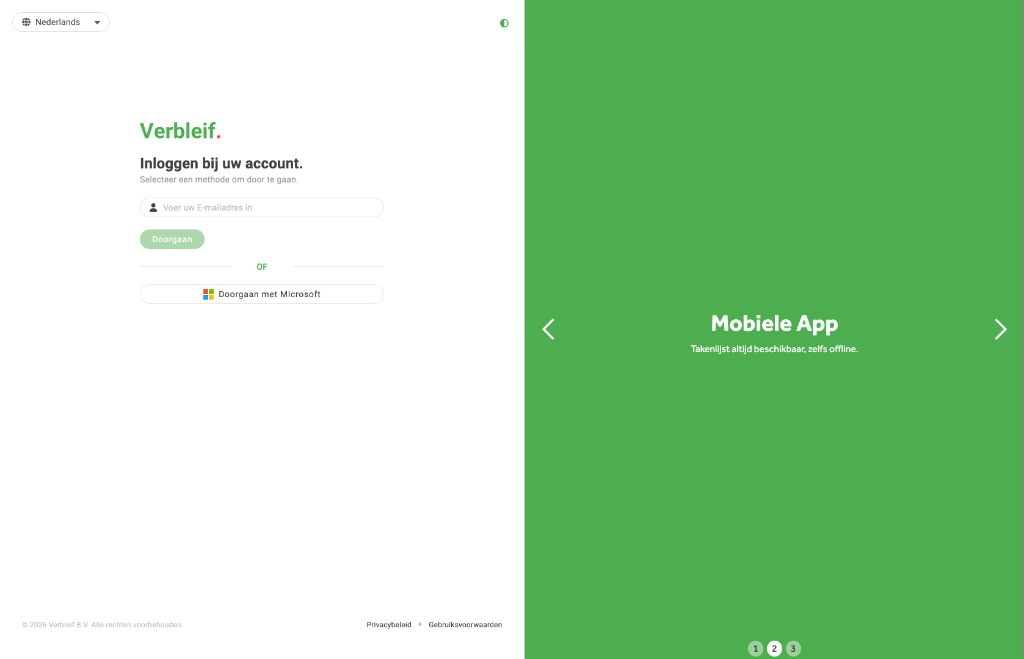
Enter your email and password and sign in.
Choose your location (park) if you have access to more than one park.

Good to know
No invitation: Contact your administrator or park management. They can add you to your location in Verbleif.
Park not on Verbleif yet: Contact Verbleif if your organisation wants to use the system. These pages describe how Verbleif works once you have access.
Install the mobile app: Download Verbleif from the App Store or Google Play. Then sign in with the same account as on the web app.
Common issues
I cannot sign in.
Check that you use the correct email address and that your account was activated through the invitation. Password no longer works? Use the reset option on the sign-in screen, or ask your administrator for help.
I see no location after signing in.
Your account is probably not linked to a park yet. Ask your administrator to invite you to the right location or grant you access.
See also
What is Verbleif?
What Verbleif is and how the web app and mobile app work together.
Computer and phone
Web app for planning, mobile app for work on the grounds.